
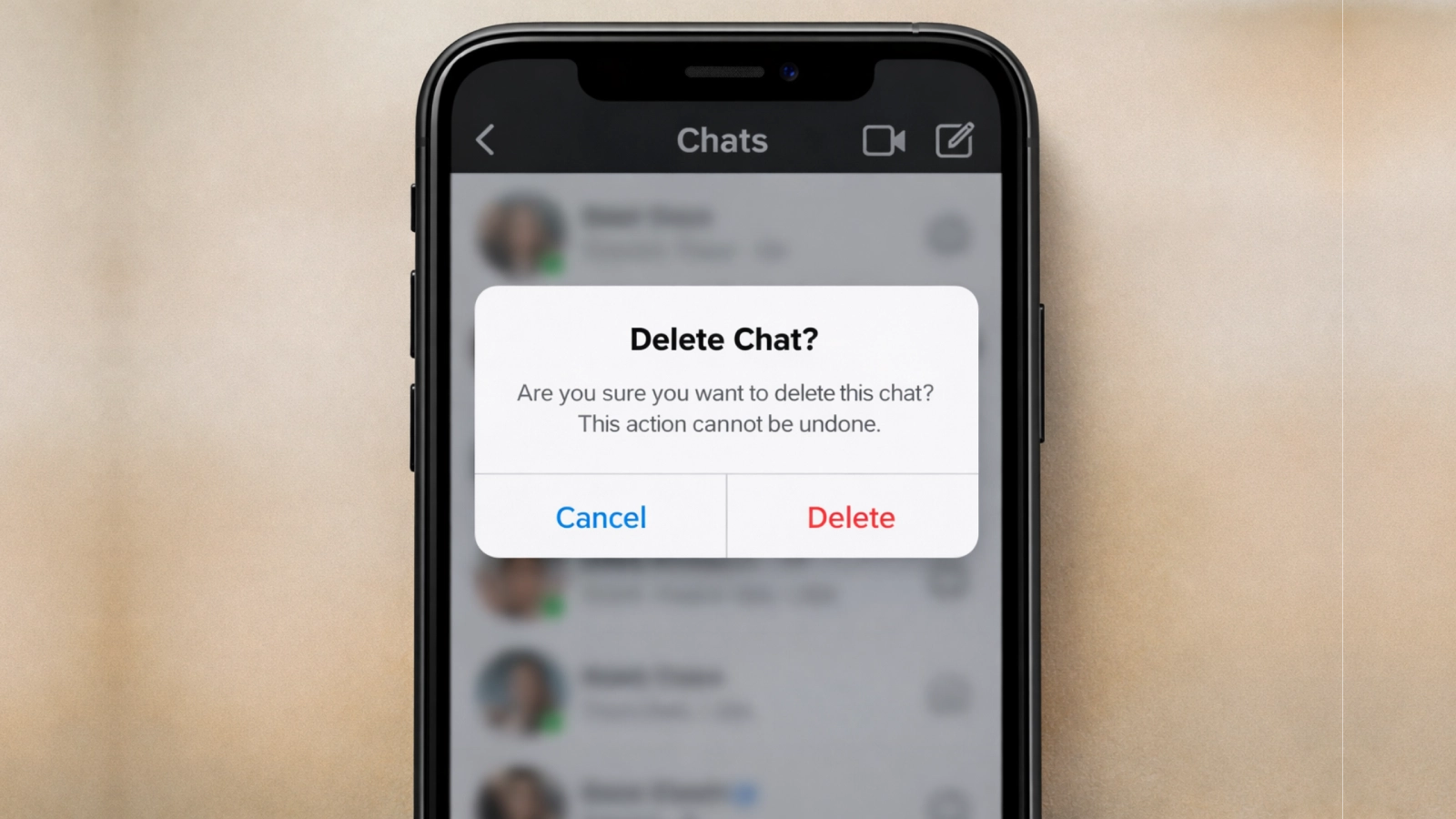
If you’re a private person or wish to keep things in order, then managing the Instagram Inbox can be of great importance. This article covers every aspect, including how to delete a message on Instagram, how to delete an Instagram chat and other similar aspects. You will also understand the concept of unsending messages and what happens to those messages on the other end of the line.
How to Delete a Single Instagram Message
If you have sent a message with a typo in it and you now regret sending that sent message, then you can delete a single message by unsending it:
Step 1: Go to your Instagram account and open your Direct Messages (DM).
Step 2: Select the chat from where you want to delete the particular message.
Step 3: Press and hold the message until a menu appears. Press and hold the message that you want to unsend, and a menu will appear from there; tap on unused to completely remove the message from both your chat and the recipient’s chat.
So this is how you unsend messages on instagram.
How to Delete Complete Instagram Chat
If you want to completely delete the chat with someone and clean up your inbox, follow these steps:
Step 1: First, go to the DMs by clicking on the messenger icon at the bottom.
Step 2: Now tap, hold or swipe ( Based on your device) the chat that you want to delete permanently.
Step 3: A list of options will appear, and from that, select the Delete option.
Now remember this method may be able to remove the entire chat from your side, but the other will still have your chat history.
Can I Delete My Messages from Other People’s Chats?
This is a frequently asked question and an easy one to answer. Can I delete my messages from another person’s chat? In theory, it is possible for one to remove their messages from a chat box by clicking the ‘unsend’ button. But, if he/she has already read the message or taken a picture of it, that information may still be on the recipient’s phone.
How to Edit Messages on Instagram
In the latest update, Instagram has given you the ability to edit a message so that you can correct it as needed. This can come in handy if there’s a typo or you want to change your message or something. Below is the complete process for editing the messages on Instagram:
Step 1: Tap and hold the message that you want to edit.
Step 2: Select the edit option, and the edit window will open.
Step 3: Make the changes that you want and then click on the send button.
Now, remember you can only edit a message within the first 15 minutes. After that, you can only unsend it. Also, for the messages that you have edited, a little edited sign will come below the message. This indicates to the reader that the message has been edited.
Other Tips for Managing Instagram Messages
Instagram offers lots of different features to maintain your chat privacy and avoid clutter. You can use these to keep things organised and secure:
- Mute conversations: If you don’t want to delete a particular chat or don’t want to restrict or block them, muting them is a great solution. By muting the particular chat, you’ll not receive the message notifications until you unmute them.
- Archive chats: If you want to keep your chats secure and stop them from falling into the wrong hands, then archiving is a great option compared to deleting them.
- Use vanish mode: For temporary conversations, you can use vanish mode, where messages disappear after they’ve been seen.
FAQs
Q1. Does the other person know when I will delete the chat that I sent them?
When you delete a chat, no notification is sent to the other person, and the chat will be deleted from both sides.
Q2. How to recover deleted Instagram Chat?
Once you have deleted the chat, there is no way you can get it back. However, if you take a backup of your chat, you can download it from there.
Q3. How can I delete Instagram Chat on both?
Just by clicking on the unsend button, you can delete a single message from both sides. If you want to delete the complete chat, there is no way to do so; you can delete it, but it will only remove it from your own side.
Knowing how to delete Instagram chat and messages can come in handy in enhancing privacy, fixing errors and controlling your interactions. With the Unsend option, delete a sent message, and it is also possible to remove entire chats to cut back on clutter in the inbox. With the message editing option, you can fix any typo or message error you want instantly.